Tapes
The machine has a tape recorder: it plays a tape image into the machine’s EAR input, and
records what the machine saves. Xpeccy+ reads .tap, .tzx and .wav tapes and
saves .tap and .wav.
Putting a tape in
Open a tape like any other file: File > Open…, a drop onto the window, Recent or Favorites. Run resets the machine and loads the tape; Mount only puts it in (see Run a program).
The Tape Player has its own  open button. A tape opened there is only
mounted, and Xpeccy+ never switches to another machine for it.
The Tape Player
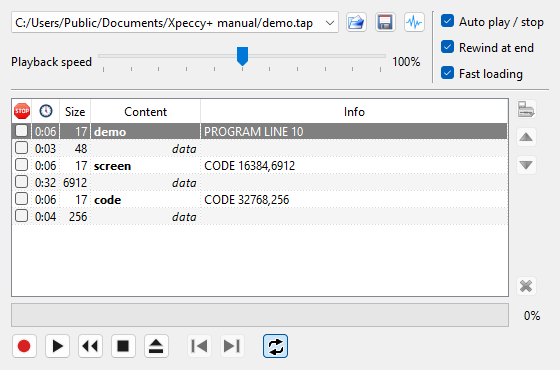
Media > Tape Player opens the player, as do the  toolbar button and a click
on the tape in the status bar. The hotkey is F6 (Modern).
At the top:
the name of the tape file; its arrow lists the other sides of the tape beside it, to put one in (see The other sides beside an image);
- Open a tape image - puts a tape in, mounted;
 Save the tape to a file - see Saving a tape;
 Export the tape as a WAV recording - see Export to WAV;
Playback speed - how fast the tape plays, from 95% to 105% of normal. A few tapes made on machines with an unusual clock load only when the speed is moved a step up or down.
At the right, three switches, described below: Auto play / stop, Rewind at end and Fast loading.
In the middle is the list of the blocks on the tape, with buttons beside it. Under the list a bar shows how far the tape is into the current block.
At the bottom are the buttons of the deck:  Record,
 Play,
 Rewind to the start,
 Stop and
 Eject the tape. A tape cannot be
ejected or rewound while it plays. After them,
 Previous tape of the
set and
 Next tape of the set put in the other sides (gray when the
tape has none; see
The other sides beside an image), and
 Autoreverse is Next tape of a set, described below.
The window title says Tape Player - modified when blocks were recorded, moved or deleted since the tape was opened or saved.
The block list
Each row is one block of the tape:
Column |
What it shows |
|---|---|
|
a box to stop the tape at this block |
|
how long the block plays |
Size |
bytes in the block |
Content |
the name in the header, in bold, or the kind of block in italics: program, code, number array, character array, header, data, or custom for a signal that is not bytes |
Info |
what the header says, such as |


The block the tape is at is marked, and the list keeps it in view as the tape plays.
Double-click a block to wind the tape to its start.
Tick the box in the first column to stop the tape when it reaches that block. Some tapes mark such stops themselves; the Info column then says stop the tape, or stop the tape on a 48K.
The buttons beside the list work on the selected block:
 Copy the block to a disk as a TR-DOS file - opens a menu of the
drives, see Copying a block to a disk;
 Move the block up,
 Move the block down;
 Delete the block.
Playing
Play starts the tape, Stop stops it. The same
commands are Media > Tape Play/Stop and the status bar’s right-click menu.
Auto play / stop lets the machine start and stop the tape. The tape starts when a program reads the tape the way a loader does, and stops when the loader stops reading, between blocks and at the end. A program that only reads the keyboard never starts it. A game that has loaded and waits for a key stops the tape too, even when the tape still has a long pause to play.
When a program loads through the ROM’s loading routine and the next block cannot be the one it asks for, the tape winds on to the block that is, as you would wind a deck on to side B. This needs Auto play / stop or Flash loading on.
When you press Stop, it overrides Auto play / stop: the tape stays stopped until you press Play, rewind it, or put another tape in.
Rewind at end: a tape that has played to its end goes back when it is needed again:
on the next Play, to the beginning;
when a program loads through the ROM’s loading routine, to the first block that fits what it loads - a multi-load game that asks for side B gets side B’s block;
with Auto play / stop on, when a program’s own loader reads the tape again, to the beginning, and it plays. A game that loads its level after every game over finds it each time, however many times the tape goes round.
A tape that is one of a set (see
The other sides beside an image) goes on
instead: when a program’s own loader reads it again at its end, or a load through the ROM
asks for a block that is not on it, the next tape of the set goes in at its start and
plays - side A, side B, then side A again - and the screen shows tape: side B. A game whose
levels are on side B gets them after side A with no hand on the deck. Play rewinds the
tape that is in, as above, and so does a tape you have recorded on. With
Autoreverse up (Next tape of a set in Options, see
Machine page) the tape that is in rewinds instead, as a lone one
does: for a game that loads its levels again and again from side B and needs side A only
to start, or one that goes wrong when it is given side A again. The buttons beside it and
Shift+F3 still change the side by hand.
With this switch off, the tape stays at its end until you rewind it: turn it off for a game that asks you to turn the tape over, or the game gets the same side again. It is on by default.
The Tape Rewind to Start hotkey winds the tape back without opening the window: Shift+F4 (Modern).
Fast loading
Fast loading runs the machine at full speed while a loader reads the tape. The sound is off, and the picture is updated only as many times a second as Fast Mode render sets (see Fast Mode). When the loading is over, the machine goes back to the moment the loader finished, so the program starts at normal speed. How a loader is recognized, and what each switch does with it, is in Tape loading by itself.
Two more settings refine it. They are on the Machine: Tape sheet of Options (see Machine: Tape), and work only with Fast loading on:
Flash loading - blocks read by the ROM’s loading routine, or by a copy of it inside a program, go straight into memory without the tape playing. A SAVE through the ROM goes straight onto the tape the same way.
Edge detection - a loader waiting for the next pulse gets it at once. Faster, but not exact: the rest of the machine does not move on while the loader waits.
Fast loading itself does not change how the loader runs, so a tape that loads at normal speed loads this way too, turbo loaders included. Edge detection is not exact: if a tape fails to load with it, switch Edge detection off.
Recording
Record starts recording: what the machine saves goes onto the tape
as new blocks, after the last one. Stop ends the recording.
Media > Tape Record/Stop does the same. Both work when no tape is in: the recording
makes a new tape.
With Fast loading and Flash loading on, a SAVE through the ROM needs no recording: its blocks go onto the tape at once.
Saving a tape
Save the tape to a file in the Tape Player writes the tape over
its own file. For a tape that has no file yet, such as one just recorded, you are asked for
a file name.
Xpeccy+ does not write TZX, and a .wav is a recording rather than a tape file. So for a
tape opened from a .tzx or a .wav you are asked for a new name instead, to save the
tape as .tap. Only a tape of standard blocks can become a .tap; export any other tape
as a WAV recording (see below).
As with a disk, you are asked about a changed tape before it is ejected or another tape is opened, and when the program closes: Tape: game.tap has been changed. Do you want to save it?
WAV files
A .wav file opens as a tape. Standard blocks in it are decoded into bytes, so they show
in the block list with their names and can be flash loaded. Anything else stays as the
recorded signal and plays as it is. The file can be 8, 16, 24 or 32 bit, or 32-bit float, with
up to 8 channels, at 4000 to 192000 Hz.
Export to WAV
Export the tape as a WAV recording opens Export Tape to WAV:
Sample rate - Auto picks a rate to fit the shortest pulse on the tape, and shows that rate; or 44100, 48000, 96000 or 192000 Hz.
Sample size - 16 bit, or 8 bit for half the file size.
Level - the recording level, in percent of full scale.
Lead-in - silence before the first block, in ms.
Tail - silence after the last block, in ms.
The line below shows the number of blocks, the playing time and about how big the file will be. OK asks for the file name. The settings are kept, and WAV recording, export in File > Save… uses them too.
Copying a block to a disk
Copy the block to a disk as a TR-DOS file opens a menu of drives,
Drive A to Drive D. The selected block goes to that drive’s disk as a TR-DOS file:
a header and the data block after it become a program (
B) or code (C) file named as in the header;a data block with a header before it is copied the same way;
a data block with no header becomes a code file called
FILE.
Only standard blocks can be copied. A drive with no disk gets a new, formatted one; a disk that is not a TR-DOS disk is formatted after you agree. Files go the other way, from a disk to the tape, in the Disk Manager (see Disk Manager).
The tape in the status bar
The status bar shows the tape’s  light, the block being played and how far
the tape is through it, with the commands of the deck on a right-click: see
Status bar. The light stays with no tape in, dimmed, and a
click on it opens the Tape Player.
With the status bar hidden, a light over the picture blinks while the tape plays (green) or records (red). Tape in the Indicators group of the Appearance page of Options turns this light on and off.