Capture menu
The Capture menu saves what the machine shows and plays: still pictures, video, sound, and RZX recordings of a game as it is played. Where the files go and what they look like is set in the Screenshots and Recording groups of the Video page.
Screenshots
Capture > Screenshot (F7 in both hotkey presets) saves the picture as a file. The message in the corner of the picture names the file, such as screenshot: xpeccy-plus_20261110_153012_Tetris GB_001.png, or says can’t save screenshot when the file cannot be written.
Capture > Screenshot to Clipboard (Ctrl+F7 in Modern, Shift+F7 in Classic) puts the same picture into the clipboard instead, to paste into an image editor or a chat. The message says screenshot copied. It is always a picture, whatever the format.
Capture > Screenshot Series takes several screenshots in a row, a set number of the machine’s frames apart. Use Capture > Screenshot while a series runs to stop it.
The files go into the screenshots folder. Their names are made from a template, by default
the date, the time, the file in use (a snapshot, tape, disk or divMMC card; the machine’s
name when there is none) and a number: xpeccy-plus_20261110_153012_Tetris GB_001.png. A
shot never writes over another file. The picture is the machine’s own, with no shader, or
the window’s, shader and all. That, the folder, the format, the size, the name and the
number of pictures in a series are set in Screenshots on
the Video page.
Record Video
Capture > Record Video starts a video, and the same command again stops it. While it records, a blinking sign in the top right corner of the picture says so; the sign is not in the video. When the recording stops, the message video saved: names the file. Its size, codec and name are set in Recording on the Video page, which can also start and stop a video by itself (Auto recording).
The video has the picture and the sound together, in an MP4 file by default. It is made by FFmpeg, a free program that is not part of Xpeccy+.
Getting FFmpeg
Xpeccy+ looks for FFmpeg in the ffmpeg folder inside the
settings folder, then wherever your system
finds programs (and on macOS in Homebrew’s folders). To use another copy, give its path in
the FFmpeg field of the Recording group; leave the field empty to let Xpeccy+ find it.
When FFmpeg is not found, Record Video opens the Get FFmpeg window instead (the
 arrow button beside the FFmpeg field opens it too):
Windows - downloads a ready-made FFmpeg (about 185 MB) into the settings folder and checks it.
Get latest downloads the newest release,
Get previous downloads the one before it. Take the previous one if
your graphics driver is not new: with an old driver the newest release cannot use the
graphics card to encode. A download that was cancelled or cut off continues where it
stopped the next time.Linux - installs the distribution’s
ffmpegpackage; the system asks for your password.macOS - installs it with Homebrew. When Homebrew is not installed, the window says where to get Homebrew.
When the window says FFmpeg … is ready, close it and use Record Video again.
Record Sound to WAV
Capture > Record Sound to WAV… asks for a file and writes everything the machine
plays into it, until you choose the command again. The file is 16-bit stereo, at the
Rate set on the Sound page of Options. The messages start WAV output and
stop WAV output confirm it. --wav-out <file> on the command line records from the
start.
RZX
An RZX file records a game as it is played: the machine’s state at the start and every key press and joystick move after it. Played back, it repeats the game exactly, frame for frame, on any program that plays RZX. It is much smaller than a video. Players use it to show a long game played to the end, or how a hard part of a game is done.
Playing an RZX
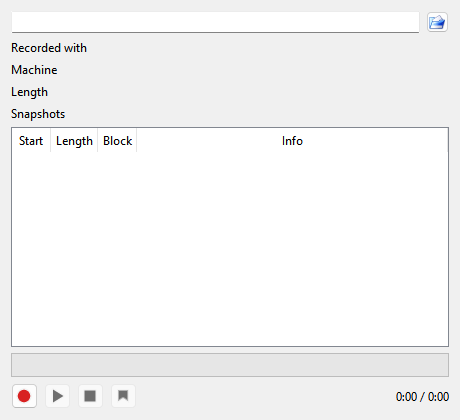
Open an .rzx file with File > Open…, or with the  button in the
RZX Player (Capture > RZX > RZX Player). It plays on the machine it was recorded on.
While it plays, a sign in the top right corner of the picture says so: a green triangle blinking
next to RZX. A pause or a speed sign takes its place while it is on, and a video of the window
leaves it out, as it does the recording sign.
The RZX Player shows:
Recorded with, Machine, Length and Snapshots - what the file says about itself. For files made by Xpeccy+, Recorded with also tells how many rollbacks and how much slow motion were used while recording.
the list of the file’s blocks, with Start, Length, Block and Info; the part being played is marked. Double-click a row to go there.
the progress bar and the time; click the bar to go to that point.
 Record,
 Play / Pause,
 Stop,
and
 Add a bookmark to roll back to.
Recording an RZX
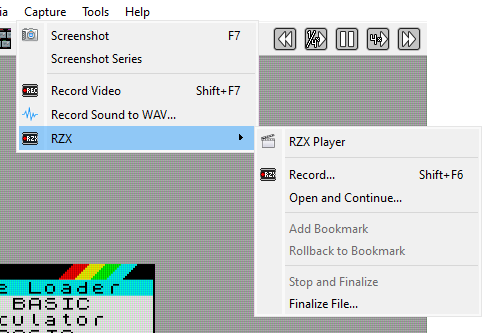
Capture > RZX > Record… asks for a file and starts recording from the machine’s current state. A blinking sign in the corner of the picture shows that recording is on. The file is saved every 30 seconds, so a crash does not lose the game.
Record in the RZX Player during playback starts recording from
that point instead: the new recording keeps everything played so far and goes on from the
current frame.
While you record:
Add Bookmark - remember this point. A bookmark added while the machine is paused is set when the machine runs again.
Rollback to Bookmark - go back to the last bookmark, or to the start when there is none, and play on from there; what was recorded after that point is thrown away. Rewind takes the recording back the same way.
Stop and Finalize - end the recording and save it without the bookmarks: this is the file to share.
Ending the recording any other way - Record… again, Stop in the
player, opening another RZX file, switching machines or quitting Xpeccy+ - saves it with its bookmarks, so
you can go on with it later. Open and Continue… is how you go on:
it opens a recording, runs it to its end at full speed, and records on from there; you are
asked for the file to record into, with the same file offered.
Finalize File… removes the bookmarks from a recording saved earlier, without playing it.
A recording of the ZX Spectrum Next plays only in Xpeccy+. It holds what the Next reads, not what comes in on its serial lines: when the ESP-01 answers, or a computer’s serial port sends bytes, while you record, the message UART input: this RZX will not replay it says that the recording will not play back the same from there.