Heat map panel
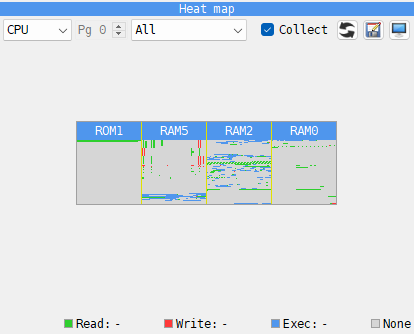
What the picture covers - CPU, Pages, or one memory area such as RAM or ROM - and the page for an area.
The counter shown, and how - All, All, mixed, All, by count, Read, Write or Exec.
Collect, and the buttons that
 reset the counters,
 export them and
 show the panel in its own window.
The picture.
The address under the mouse, and the legend with its counts.
The Heat map counts, for every byte of memory, how many times the program has read it, written it and run it: RAM and ROM, and the EEPROM and RAM of a divMMC when the machine has one. Click the Heat map tab, under the DUMP, and tick Collect: counting starts and goes on while the machine runs, also with the Debugger closed, until you untick it. With Collect off the picture says collecting is off.
Colors
Each counter has its color: Read green, Write red, Exec blue. A byte nothing has touched is gray. Read, Write and Exec show one counter alone. All shows the three at once, in one of three ways:
All - each cell takes the color of the counter that wins: blue when it was run more often than read and written together, else red when written more than read, else green.
All, mixed - each counter that is not 0 adds its color: read and write together make yellow, read and exec cyan, write and exec magenta, all three white. The line above the legend shows the mixes.
All, by count - red, green and blue are write, read and exec, each as bright as its count: dim for a single access, full for the biggest count of that counter in the picture. The line above the legend shows each scale with its biggest count.
Exec counts every byte the CPU reads as part of an instruction, operands included, and the byte after a HALT, which the CPU fetches over and over while it waits; Read counts only the data it reads. So the picture reads like a map of the program: blue is code, red is what it changes - the screen, the variables, the stack - and green is what it only reads, such as graphics, fonts and tables.
CPU
CPU shows the 64K the CPU sees now as four squares, one for each 16K window, with one cell for 4 bytes. Each heading says where the window starts and what memory is in it: #4000 RAM5. When the two halves of a window hold different memory - a divMMC’s EEPROM and one of its RAM banks over the ROM - a line parts them and the heading names both: DIVROM / DIV3. The ZX Spectrum Next pages its memory by 8K, so there the picture has eight narrower slots, one for each 8K.
One page
RAM, ROM and the other areas show one page of that memory, with one cell for each byte, and scroll when the panel is too small. The list holds the areas the machine has: DIVROM and DIV with a divMMC, and on the ZX Spectrum Next also ALTROM, MFROM and MFRAM. The page box counts pages as the machine does: 16K, but 8K for the Next’s RAM and for the divMMC’s RAM.
Pages
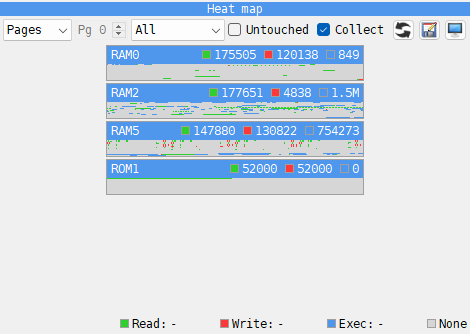
Pages lists the pages the program has touched, one strip each: the page’s name, its cells (one for 4 bytes), and its read, write and exec counts. Tick Untouched, beside Collect, to list every page. Click a strip to open that page. On a machine with megabytes of memory - 4 MB on a ZX Evolution, up to 2 MB on the Next - this shows at once where the program lives.
The readout
Hold the mouse over a cell to see its address, the page it is in and the offset in that page - #4000-#4003 RAM5 #0000 - and its counts: Read:, Write:, Exec:. The addresses here and in the headings are written as the Debugger’s are: see Hex or decimal. Over the heading of a strip, the counts are the page’s. A byte’s count stops at 4294967295 and then reads max; a page’s counts go on. In the Debugger, double-click a cell and the listing goes there, if the CPU can see that memory now.
Heat Map window
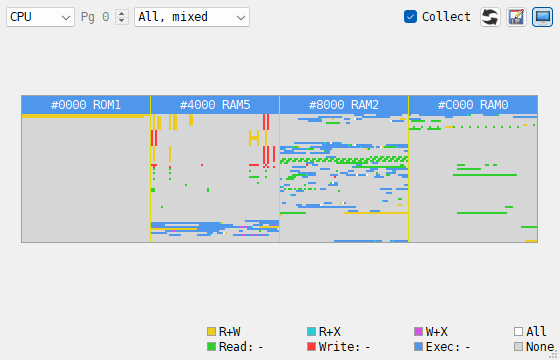
Tools > Heat Map, or the Show in its own window button, moves the
panel out of the Debugger into a window of its own, Heat Map. The same command, the
button again, or closing the window puts the panel back; while it is out, its tab in the
Debugger says so, with a Bring it back button.
The window works without the Debugger: the picture follows the machine while it runs, once a frame, or less often when a big picture takes long to draw (in fast mode, once in ten frames). The window keeps its place and size, and a window that was open when you quit opens again at the next start. It has no key by default; one can be set in Hotkeys.
Reset and export
The button with the circular arrows resets all counters, after asking.
Loading a snapshot resets them too. The button beside it saves all counters
to a CSV file, with the columns type,page,offset,read,write,exec and one line for each
byte, untouched bytes included, for a spreadsheet or a script of your own. type is the
memory - RAM, ROM, and ALTROM, DIVROM, DIV, MFROM, MFRAM where the machine
has them - and page counts pages as the page box does.