Hotkeys page
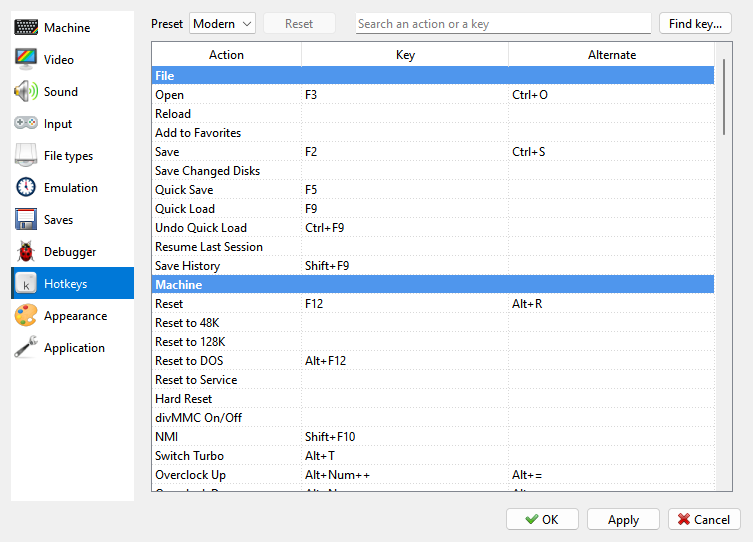
The keys of every command, in the Modern or Classic preset or one of your own. See Hotkeys page.
A command that has a key shows it beside its name in the menu. All the keys are set on the Hotkeys page of Options. The Hotkey List action opens that page with its search box ready. It is in no menu and has no key in either set: give it a key to use it.
Modern, Classic and Custom
Two sets of keys come with the program. Pick one in the Preset list at the top of the Hotkeys page.
Modern - the set a new installation starts with. The commands you use while a program runs sit on the F-keys and on the block of keys above the arrows: F2 saves, F3 opens, F5 and F9 are quick save and quick load, F6 is the Tape Player, F10 the Debugger, F12 resets. Most of the rest use Alt. Esc is not a hotkey here: it goes to the machine as BREAK.
Classic - the keys of earlier versions of the program: F1 opens Options, Esc opens the Debugger, F9 saves the changed disks, F5 records to tape.
Custom - your own keys. It starts as a copy of Modern or Classic, and keeps only what you change; everything else follows the set it was made from. The list shows it as Custom (from Modern) or Custom (from Classic) once you have changed something.
A Spectrum program needs every key the machine has, so Modern keeps to the F-keys, the block
above the arrows and Alt, which is no Spectrum key. Ctrl is Symbol Shift on the machine, so
no hotkey is Ctrl with a Spectrum key: Ctrl+O on the machine is ;. Options is Alt+,.
Picking Modern or Classic does not delete your Custom keys: pick Custom again and your keys
are back. The
change takes effect when you click  OK or Apply in Options.
A key works by its place on the keyboard: with a Cyrillic or another layout switched on in the system, Alt+M is still Alt+M.
Change a key
The table on the Hotkeys page has three columns: Action, Key and Alternate. Each action can have two keys, and either one works. The actions are grouped as in the menus: File, Machine, Time, Tape, Capture, RZX, View, Input, Tools, and then the keys of the Debugger: Debugger, Disassembler and Memory dump.
To change a key:
Double-click the Key or the Alternate cell of the action, or select it and press Enter.
Press the new key with its modifiers - Alt, Ctrl, Shift. A modifier alone is not a key; Tab, Enter and Esc are.
Click
Confirm.  Clear leaves the action without
that key.
Delete or Backspace on a selected cell clears that key straight away.
Right-click an action for the same commands and a few more: Change key…, Change alternate…, No keys, and on Custom, for a key you changed, As in Modern (or As in Classic) to put the key of the original set back.
A change made while Modern or Classic is picked switches the list to Custom, made from that set. If Custom already holds changes made from the other set, the program asks first, since Custom then starts again from the set now picked and those changes are lost.
When the key you press already belongs to another action, the program says which action and asks whether to move the key to the new one. The main window and the Debugger keep their keys apart, so F7 can be Screenshot in one and Step in in the other.
In Custom, a key you changed is shown in bold. Hold the mouse over it to see the key the original set has for that action. Reset, beside the Preset list, drops all your changes and takes Custom back to the set it was made from.
Find a key
Type in the search box to see only the actions whose name, group or key matches: “tape” shows the tape commands, “F5” shows what F5 does. A key is matched whole, so F1 does not find F10.
Find key… asks you to press a key and puts it into the search, so you see what that key does.
How the keys behave
Grab Keyboard. While the keyboard is grabbed, every key goes to the machine and the hotkeys stop working, except the hotkey that releases the keyboard. Ctrl+Alt pressed together and released with no other key between also releases the keyboard. See Grab Keyboard.
Menus. A command picked from a menu or from the toolbar always works, grabbed keyboard or not.
Holding a key. A held hotkey does not repeat, except Faster, Slower, Overclock Up and Overclock Down, which keep changing the speed while you hold them. Rewind (Hold) goes back in time for as long as you hold its key. Fast Mode, Slow Motion and Fast Forward each work in one of three ways, set on the Emulation page of Options: Toggle, Hold, or Tap or hold (the default): a short tap switches the mode on or off, a longer press keeps it on only while the key is held. See Speed and time.
Shift and Ctrl. A hotkey’s own Shift or Ctrl is not passed to the machine as Caps Shift
or Symbol Shift: Shift+F9 in Modern does not leave Caps Shift pressed. When Shift or Ctrl
is held with a key and the combination is not a hotkey, the key works as it does alone,
and Shift or Ctrl stays pressed for the machine. So on the ZX Evolution (TSConf), Ctrl+F12
resets into the TS-BIOS setup, and Shift+F12 resets with Caps Shift held, so TS-BIOS starts
the boot its setup names for Caps Shift: by default, boot.$c from the SD card.
Other windows. In the Tape Player, the Disk Manager, Gamepads and the other tool windows, the hotkeys on the F-keys, Pause and Scroll Lock, and those with Alt or Ctrl, still work. A key with no modifier, such as Del, Home or End, belongs to the window, and Esc closes the window. In the RZX Player every hotkey works except Esc.
macOS
On a Mac, Cmd takes the place of Alt in the Modern set: Cmd+, for Options, Cmd+R for Reset, Cmd+1 to Cmd+6 for the window size. Open and Save also have the Mac’s own Cmd+O and Cmd+S. A few keys stay on Alt (Option): Grab Mouse is Alt+M, since Cmd+M minimizes a window. Fullscreen is Cmd+Ctrl+F or Cmd+Return, and in Modern the Debugger has F10 only. Classic keeps its Alt keys; only Options moves from F1 to Cmd+,.
Ctrl+Cmd, pressed and released together, lets a grabbed keyboard or mouse go.
The Hotkeys page always shows the keys of your system, so check a key there. The tables below give the keys of Windows and Linux.
All the keys
A dash means no key. Where an action has two keys, both are given. In a key, Num means a key on the numeric keypad: Alt+Num++ is Alt with the keypad plus.
File
Action |
Modern |
Classic |
|---|---|---|
Open |
F3 |
F3 |
Recent Files |
- |
- |
Reload |
- |
- |
Next Side |
Shift+F3 |
Shift+F3 |
Previous Side |
- |
- |
SD Card: Eject |
- |
- |
SD Card: Refresh |
- |
- |
Add to Favorites |
- |
- |
Save |
F2 |
F2 |
Save Changed Disks |
- |
F9 |
Quick Save |
F5 |
- |
Quick Load |
F9 |
- |
Save History |
Shift+F9 |
- |
Undo Quick Load |
Ctrl+F9 |
- |
Resume Last Session |
- |
- |
Machine
Action |
Modern |
Classic |
|---|---|---|
Reset |
F12, Alt+R |
F12 |
Reset to 48K |
- |
- |
Reset to 128K |
- |
- |
Reset to DOS |
Alt+F12 |
- |
Reset to Service |
- |
- |
Hard Reset |
- |
- |
divMMC On/Off |
- |
- |
NMI |
Shift+F10 |
F10 |
Switch Turbo |
Alt+T |
Alt+T |
Overclock Up |
Alt+Num++, Alt+= |
Alt+Num++ |
Overclock Down |
Alt+Num+-, Alt+- |
Alt+Num+- |
Mute |
Alt+U |
- |
Time
Action |
Modern |
Classic |
|---|---|---|
Pause |
Pause, Alt+P |
Pause |
Fast Mode |
Ins, Alt+Up |
Ins |
Slow Motion |
End, Alt+Down |
End |
Fast Forward |
Home, Alt+Right |
Home |
Slower |
Shift+Num+- |
Shift+Num+- |
Faster |
Shift+Num++ |
Shift+Num++ |
Rewind (Hold) |
Del, Alt+Left |
Del |
Tape
Action |
Modern |
Classic |
|---|---|---|
Tape Player |
F6 |
- |
Tape Play/Stop |
F4 |
F4 |
Tape Record/Stop |
- |
F5 |
Tape Rewind to Start |
Shift+F4 |
- |
Capture
Action |
Modern |
Classic |
|---|---|---|
Screenshot |
F7 |
F7 |
Screenshot to Clipboard |
Ctrl+F7 |
Shift+F7 |
Screenshot Series |
- |
Alt+F7 |
Record Video |
Shift+F7 |
Ctrl+F7 |
Record Sound to WAV |
- |
- |
RZX
Action |
Modern |
Classic |
|---|---|---|
RZX Player |
- |
- |
Record |
Shift+F6 |
Ctrl+F6 |
Open and Continue |
- |
- |
Add Bookmark |
- |
- |
Rollback to Bookmark |
- |
- |
Stop and Finalize |
- |
- |
Finalize File |
- |
- |
View
Action |
Modern |
Classic |
|---|---|---|
Size x1 |
Alt+1 |
Alt+1 |
Size x2 |
Alt+2 |
Alt+2 |
Size x3 |
Alt+3 |
Alt+3 |
Size x4 |
Alt+4 |
Alt+4 |
Size x5 |
Alt+5 |
Alt+5 |
Size x6 |
Alt+6 |
Alt+6 |
Fullscreen |
Alt+Return, F11 |
Alt+Return |
Keep Aspect Ratio |
- |
Alt+R |
Anti-flicker |
Alt+N |
Alt+N |
Reload Shader |
- |
- |
Menu Bar |
- |
- |
Virtual Keyboard |
Alt+K |
Alt+K |
Input
Action |
Modern |
Classic |
|---|---|---|
Grab Keyboard |
ScrollLock, Alt+G |
Alt+G |
Grab Mouse |
Alt+M |
Alt+M |
Gamepads |
- |
- |
Tools
Action |
Modern |
Classic |
|---|---|---|
Cheats |
- |
- |
Debugger |
F10, Ctrl+Pause |
Esc |
Screen |
- |
Alt+S |
Sound Chips |
- |
Alt+A |
Heat Map |
- |
- |
Options |
Alt+, |
F1 |
Hotkey List |
- |
- |
Debugger keys
These work in the Debugger window. Options, Open, Save, Reset, Virtual Keyboard, Screen, Sound Chips and Heat Map from the tables above work there too.
Action |
Modern |
Classic |
|---|---|---|
Debugger |
||
Step in |
F7 |
F7 |
Step over |
F8 |
F8 |
Step out |
Shift+F8 |
F6 |
Fast step |
Alt+F7 |
Alt+F7 |
Stop here |
F4 |
F9 |
Trace |
Ctrl+T |
Ctrl+T |
Load dump |
Ctrl+O |
Ctrl+O |
Save dump |
Ctrl+Shift+S |
Ctrl+S |
Load xmap |
- |
- |
Save xmap |
- |
- |
Find pattern |
Ctrl+F |
Ctrl+F |
Switch labels |
Ctrl+L |
Ctrl+L |
Decimal numbers |
Ctrl+Shift+H |
Ctrl+Shift+H |
Show labels list |
- |
- |
Reload file |
- |
- |
Close |
Esc |
Esc |
Disassembler |
||
Jump to PC |
Home |
Home |
Set PC |
End |
End |
Breakpoint |
Space |
Space |
Breakpoint on read |
Alt+Shift+Space |
Alt+Shift+Space |
Breakpoint on write |
Ctrl+Space |
Ctrl+Space |
Breakpoint on CPU address |
Shift+Space |
Shift+Space |
Bookmark 1 |
Ctrl+1 |
Ctrl+1 |
Bookmark 2 |
Ctrl+2 |
Ctrl+2 |
Bookmark 3 |
Ctrl+3 |
Ctrl+3 |
Bookmark 4 |
Ctrl+4 |
Ctrl+4 |
Bookmark 5 |
Ctrl+5 |
Ctrl+5 |
Go to bookmark 1 |
Alt+1 |
Alt+1 |
Go to bookmark 2 |
Alt+2 |
Alt+2 |
Go to bookmark 3 |
Alt+3 |
Alt+3 |
Go to bookmark 4 |
Alt+4 |
Alt+4 |
Go to bookmark 5 |
Alt+5 |
Alt+5 |
Jump to operand |
Alt+Right |
F4 |
Return |
Alt+Left |
F5 |
Go to address |
G, Ctrl+G |
G |
Memory dump |
||
Go to address |
G, Ctrl+G |
G |
Go to (PC) |
Ctrl+P |
Ctrl+P |
Go to (SP) |
Ctrl+S |
Ctrl+S |
Go to (BC) |
Ctrl+B |
Ctrl+B |
Go to (DE) |
Ctrl+D |
Ctrl+D |
Go to (HL) |
Ctrl+H |
Ctrl+H |
Go to (IX) |
Ctrl+X |
Ctrl+X |
Go to (IY) |
Ctrl+Y |
Ctrl+Y |