Machine menu
The Machine menu picks the machine and controls it: Model, Reset, NMI, Turbo Mode, then Pause, Fast Mode, Slow Motion, Fast Forward, Allow Rewind, and Mute. How each machine is set up is on the Machine page of Options.
Xpeccy+ comes with the Sinclair and Amstrad models of the ZX Spectrum, the ZX Spectrum Next, the best-known clones and the ZX Evolution board. Each one is a complete machine: memory, ROM images, disk interface, sound and timing are already set as on the real hardware.
The built-in machines
The machine list shows them in this order, in five groups.
Machine |
Memory |
Disk |
Notes |
|---|---|---|---|
ZX Spectrum 48K |
48 KB |
- |
Sinclair’s 48K; beeper only; cartridge slot |
ZX Spectrum 128K |
128 KB |
- |
Sinclair’s 128K; AY |
ZX Spectrum +2 |
128 KB |
- |
Amstrad’s first model, the gray +2: the 128K with its own ROMs and late ULA timing; AY |
ZX Spectrum +2A |
128 KB |
- |
Amstrad’s later model: Amstrad gate array, four +3 ROMs; AY |
ZX Spectrum +3 |
128 KB |
+3, two drives |
the +2A with a 3-inch disk drive; AY |
ZX Spectrum Next |
1024 or 2048 KB |
- |
a group of its own: Z80N up to 28 MHz, three AYs and DACs, divMMC and SD card, Wi-Fi; see ZX Spectrum Next |
Pentagon |
128 KB |
Beta Disk |
YM, Covox; Kempston mouse and joystick |
Pentagon 1024 SL |
1024 KB |
Beta Disk |
as the Pentagon; turbo x2, Gluk clock; starts Gluk Reset Service |
Scorpion ZS 256 |
256 KB |
Beta Disk |
AY, Covox; Kempston mouse and joystick |
Scorpion ZS 256 Turbo+ |
256 KB |
Beta Disk |
the Scorpion with the Turbo+ board: SMUC hard disk, turbo x2 |
ATM Turbo 2+ |
1024 KB |
Beta Disk |
YM, Covox; ATM hard disk, Kempston mouse and joystick, turbo x2 |
Profi v3 |
512 KB |
Beta Disk |
version 3 board; AY, Covox; Kempston mouse and joystick, turbo x2 |
Profi v5 |
1024 KB |
Beta Disk |
version 5 board; YM, Covox; Profi hard disk, DD palette, Kempston mouse and joystick, turbo x2 |
ZXM-Phoenix |
2048 KB |
Beta Disk |
YM, Covox; Kempston mouse and joystick, turbo x2 |
ZX Evolution (BaseConf) |
4096 KB |
Beta Disk |
the ZX Evolution board running BaseConf: two YM (TurboSound), Covox; NemoIDE hard disk, SD card, PC keyboard, mouse with wheel, turbo x2 and x4 |
ZX Evolution (TSConf) |
4096 KB |
Beta Disk |
the same board running TSConf; as BaseConf |
ALF TV Game |
48 KB |
- |
a games console built on the 48K: no AY; cartridges, two joysticks |
ALF TV Game 128K |
128 KB |
- |
the 128K version of the console; YM |
Beta Disk is the TR-DOS disk interface; the +3 has its own drives and +3DOS (see Floppy disks).
On the clones and the +3 the disk interface is part of the board, and so are the hard disk interfaces of the ATM Turbo 2+, the Profi v5 and the ZX Evolution: Options shows them, but does not let you remove them.
A name with an asterisk after it in the list, such as Pentagon *, is a built-in machine
you have changed (see Your own machines).
Model
Pick a machine in any of these places:
Machine > Model on the menu bar;
the
 Model button on the toolbar;
Model in the right-click menu over the picture;
the machine’s name in the status bar, with either mouse button;
Model on the Machine page of Options, then Apply.
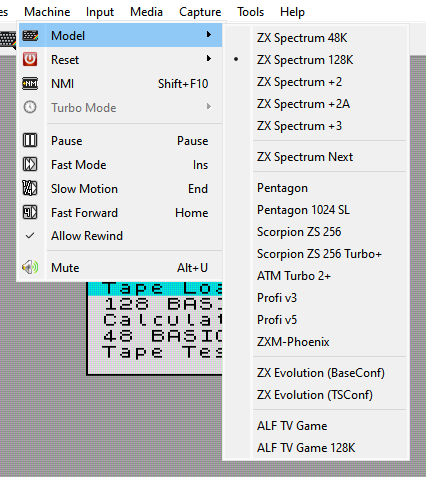
Switching machines resets the new machine and shows its name over the picture and in the status bar. The tape and the disks stay in: the tape is rewound to its start. An RZX recording stops, and the rewind history starts over.
In Options, pick the machine first and change its settings after: when Apply switches the machine, what you changed on the Machine page is dropped, as it was for the old machine. Changes on the other pages are applied to the new one. The page then shows the new machine’s settings.
Opening a file can switch the machine too, when the current one cannot run it. See Run a program.
Reset
A click on Machine > Reset resets the machine. Its menu lists where a reset can take the machine: the ROMs it can start from, such as Basic 128, Basic 48, Service and TR-DOS. The one in bold is the ROM a plain reset starts from, with the reset key beside it. TR-DOS is there only when the machine has a Beta Disk interface. On macOS a click on Reset only opens the menu: the bold item is the plain reset there.
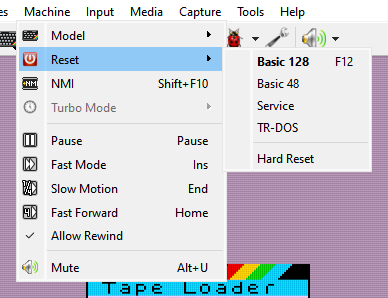
On the ATM Turbo 2+, the ZX Evolution, the ZX Spectrum Next and the ALF consoles the list holds only Soft Reset: these machines start their own firmware on every reset.
The Pentagon 1024 SL starts from Service, Gluk Reset Service, as the board does. Gluk looks at the keys held down as it starts: hold S and reset for its CMOS Setup, F for its help. On the Pentagon set the plain reset to Service for the same.
With the divMMC on, a plain reset starts Basic 128 instead, on both. Gluk and the divMMC cannot work together: the divMMC switches its own memory in whenever the processor runs code at certain addresses at the start of the ROM, and Gluk runs code at two of them (#0008 and #0038) as it starts. esxDOS then takes over in the middle of Gluk, and the machine hangs. Service in the list still starts Gluk, with this result.
The  Reset button on the toolbar resets the machine when clicked; the
arrow beside it opens the list. Reset in the right-click menu works the same way. F12
resets in both hotkey presets.
To change the ROM a plain reset starts from, click the  ROM button on
the Machine page of Options and mark another ROM (see ROM images).
Hard Reset, at the end of the list, switches the machine off and on again. The RAM comes up as the machine’s does at power-on, and so does a divMMC, which a reset leaves as it is. The CMOS memory, an EEPROM and the media keep what they hold.
The Hotkeys page of Options also has Reset to 48K, Reset to 128K, Reset to DOS, Reset to Service and Hard Reset, with no keys set to start with. On a machine that cannot start from that ROM, the key only shows a short message.
NMI
 NMI on the toolbar, or Machine > NMI, sends a non-maskable
interrupt to the CPU. What happens then is up to the
machine’s ROM. It does nothing while an RZX recording plays. The key is F10 in the Classic
preset and Shift+F10 in the Modern one. With a divMMC on, it is the
board’s NMI button. On the ZX Spectrum Next it is the yellow NMI button on its side (see
ZX Spectrum Next).
Turbo Mode
Machine > Turbo Mode lists the turbo steps the machine’s board has, with the CPU clock each one gives, for example x2 (7 MHz). It is grayed out on a machine with no turbo, and while an RZX recording plays. The Switch Turbo hotkey steps through the list.
A board that has a turbo usually lets programs switch the turbo too. Then a program can change the step you picked, and Xpeccy+ shows the new clock over the picture.
On the Pentagon 1024 SL, Gluk Reset Service runs its own menu at 7 MHz and sets the turbo again every time it reads its clock, so the turbo cannot be switched while the menu is on the screen. The programs it starts run at the speed its W key picks: Fast (7 MHz) or Slow (3.5 MHz), shown at the top of its menu. Gluk keeps the choice in the clock chip; a new machine starts with Slow.
The Overclock slider of the Machine page of Options runs the CPU faster still, on any machine; see Overclock.
Pause, Fast Mode, Slow Motion, Fast Forward, Allow Rewind
These change how fast the machine runs, and let it go back in time; see Speed and time.
Mute
 Mute on the toolbar, or Machine > Mute, silences the sound and
brings it back. The arrow beside the Mute button opens a slider for the volume (see
Toolbar).
Alt with the mouse wheel over the picture turns the volume up or down by 5%. The slider under the Mute button shows the new volume for a moment; when the toolbar is hidden, the volume is shown over the picture. While the mouse is grabbed, the wheel goes to the machine instead.
This volume is the same as Master on the Sound page, and both mute and volume are kept for the next start.