Input menu
Type on the PC keyboard and the machine gets the keys. A gamepad, or a few keys of the PC keyboard, can be a joystick; the PC mouse can be a Kempston mouse. The Input menu has the commands for all of this: Grab Keyboard, Grab Mouse, Keymap and Gamepads. Their settings are on the Input page of Options, and the machine’s joystick and mouse interfaces on its Machine page.
The keyboard
The Spectrum keys are where they are on the PC: letters, digits, Space and Enter. The two shift keys of the Spectrum are the PC’s:
PC key |
Spectrum key |
|---|---|
Shift |
Caps Shift |
Ctrl |
Symbol Shift |
The symbol keys ; ' , . / - = type what is printed on them, with Shift too:
Shift+; gives :, Shift+' gives ", Shift+/ gives ?. The machine gets the
Spectrum’s own way of typing it, Symbol Shift and a key. Letters and digits are the
Spectrum’s, so Shift+A is a capital A, Shift+0 is DELETE and Shift+9 GRAPHICS, and games
read the keys as they always have. Symbols on the digits are typed as on the Spectrum, with
Ctrl: Ctrl+2 gives @.
To have the symbol keys as fixed Spectrum keys instead, with Shift as Caps Shift, turn off Input > Keymap > Type PC Symbols, or pick Key Positions in the Typing list on the Input page of Options.
Other PC keys press two Spectrum keys together:
PC key |
Spectrum keys |
Gives |
|---|---|---|
Backspace |
Caps Shift + 0 |
DELETE |
arrows |
Caps Shift + 5, 6, 7, 8 |
cursor left, down, up, right |
Esc, Tab |
Caps Shift + Space |
BREAK |
Caps Lock |
Caps Shift + 2 |
CAPS LOCK |
Page Up |
Caps Shift + 3 |
TRUE VIDEO |
Page Down |
Caps Shift + 4 |
INV. VIDEO |
Delete |
Caps Shift + 9 |
GRAPHICS |
|
Caps Shift + 1 |
EDIT |
|
Caps Shift + Symbol Shift |
extended mode |
Home |
Symbol Shift + Q |
<= |
End |
Symbol Shift + E |
>= |
|
Symbol Shift + 8, 9 |
( and ) |
With Key Positions, the symbol keys are fixed too:
PC key |
Spectrum keys |
Gives |
|---|---|---|
|
Symbol Shift + O |
; |
|
Symbol Shift + P |
“ |
|
Symbol Shift + J |
- |
|
Symbol Shift + K |
+ |
|
Symbol Shift + N, M |
, and . |
|
Symbol Shift + C |
? |
The F-keys, Alt, Insert and the numeric keypad do nothing on the machine.
A key that is a hotkey runs its command instead of reaching the machine. No hotkey is Ctrl with a Spectrum key, so Ctrl is always Symbol Shift. Which other keys are hotkeys depends on the set of hotkeys you use: in Modern, Delete, Home, End and Insert are hotkeys, while Esc is left to the machine as BREAK. See Hotkeys page. To give the machine every key, grab the keyboard.
A key is recognized by its place on the keyboard, not by what the system layout puts on it,
so a Cyrillic or another layout changes nothing, and switching layouts does not either. A
symbol key types the symbol of the US layout, the Latin one printed on it: with a Russian
keyboard, Shift+Ж gives :.
The ZX Spectrum Next takes the keys as its own PS/2 keyboard does, Shift as Caps Shift (see ZX Spectrum Next). The Profi with a grabbed keyboard has a layout of its own.
Keymaps
A keymap says which PC key presses which Spectrum key. Pick one in Input > Keymap, or in the Keymap list on the Input page of Options:
ZX Spectrum 128K - the keys described above: both Shift keys are Caps Shift and both Ctrl keys Symbol Shift, as on a PC keyboard;
ZX Spectrum 48K - Caps Shift on both left Shift and left Ctrl, Symbol Shift on both right Shift and right Ctrl, as the two keys are placed on a 48K. The
\key is GRAPHICS (Caps Shift + 9).
A keymap changes only the keys it names; all the others stay as in ZX Spectrum 128K.
On macOS the program cannot tell the left Shift from the right one, nor the left Ctrl from the right one. The 48K keymap then has no Symbol Shift: use ZX Spectrum 128K there.
Your own keymap
A keymap is a text file with the extension .map, put in the keymaps folder of the settings
folder (see Where the settings are). It shows in
the Keymap menu by its name without .map the next time the menu is opened. A file with
the name of a built-in keymap is used instead of that one. A ZX Spectrum 128K.map left from
an earlier version is not listed, that keymap is built in now; one you changed is listed as
ZX Spectrum 128K.map.
Each line is one PC key, then the Spectrum keys it presses, all separated by tabs:
`	C	1
LS	C
RS	S
The first line makes the ` key press Caps Shift and 1 together, which is EDIT. A line with a
PC key alone makes that key press nothing. A key your keymap changes presses what the keymap
says, with Type PC Symbols on too.
PC keys are named 1 to 0, A to Z, ENT, SPC, LS and RS (left and right Shift),
LC and RC (Ctrl), LA and RA (Alt), TAB, CAPS, BSP, ESC, F1 to F11, UP,
DOWN, LEFT, RIGHT, HOME, END, INS, DEL, PGUP, PGDN, the symbol keys
`, \, [, ], ;, " (the quote key), -, + (the = key), ,, ., /, and on
the numeric keypad N0 to N9, NDOT, NENT, NPLUS, NMINUS, NMUL, NSLASH,
NLOCK.
Spectrum keys are one character each: 1 to 0, the letters in lower case a to z, E
for Enter, C for Caps Shift, S for Symbol Shift, and a space for Space.
A PC key can also move the Kempston joystick: JU, JD, JL, JR for up, down, left and
right, JF for fire, J2 to J4 for the extra buttons.
Grab Keyboard
Input > Grab Keyboard gives the whole PC keyboard to the machine. While it is on:
every key reaches the machine, Esc and the F-keys included;
the hotkeys stop working, except the key of Grab Keyboard itself (ScrollLock or Alt+G in Modern, Alt+G in Classic);
a player set up in Gamepads to use the keyboard no longer gets its keys: they reach the machine as ordinary keys;
the commands in the menus and on the toolbar still work.
To release the keyboard, press the Grab Keyboard key again, or press Ctrl and Alt together and release them with no other key between (Ctrl and Cmd on a Mac). A short message on the picture says when the keyboard is grabbed and released.
Machines with a keyboard of their own
Profi. A Profi has a PC-style keyboard of its own. With the keyboard grabbed, the PC keyboard works as that keyboard: the keys type the characters printed on them, Shift included, and F1 to F10, Home, End, Page Up, Page Down, Insert and Delete give the Profi’s own keys. When the keyboard is not grabbed, the PC keyboard works as the Spectrum keyboard described above.
ATM Turbo 2+ and ZX Evolution. These machines read a PC keyboard as well as the Spectrum one, and every key you press reaches both. The PC keyboard row in the Input group of the Machine page of Options sets the scan codes the machine gets: As the machine has it, Scanset 1 (XT), Scanset 2 (AT) or Scanset 3 (PS/2). Leave it as the machine has it unless a program asks for another set.
Joysticks
The joystick interface of the machine is set on the Machine page of Options, in the Input group: Joystick is None, Kempston 5-bit or Kempston 8-bit. The 8-bit one has three more fire buttons, Fire 2 to Fire 4. The Scorpion ZS 256 and its Turbo+ have only the 5-bit one: the joystick port on the board has no lines for Fire 2 to Fire 4.
Sinclair, cursor and QAOP joysticks are keys on the Spectrum keyboard, so they need no interface: a player set up in the Gamepads window presses those keys for you.
The ALF TV Game consoles have no keyboard: there the arrows with Space or Enter are the first joystick, and W, A, S, D with left Shift or left Ctrl are the second.
Gamepads
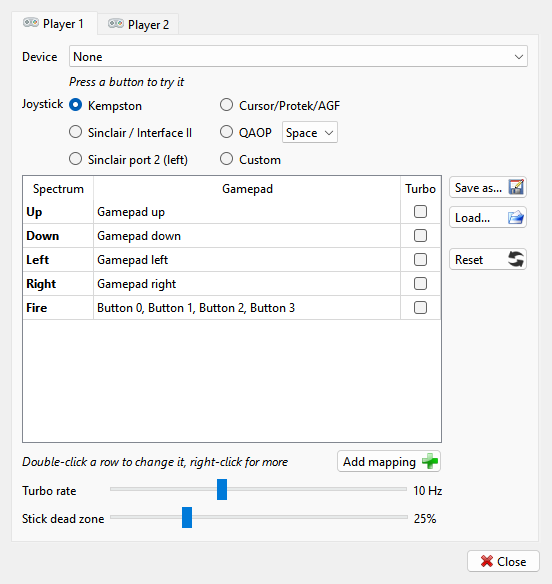
A click on Input > Gamepads, or Input > Gamepads > Manage…, opens the Gamepads window (on macOS, Manage… only). It has a tab for each of two players, Player 1 and Player 2. A change takes effect at once; there is nothing to apply.
Device - what the player plays with:
None;
Keyboard: arrows + Ctrl - the arrows, and either Ctrl for fire;
Keyboard: WASD + Space;
a gamepad connected to the PC, or one used before and now unplugged, marked (not connected).
Under it, a line shows what the last button or key pressed does, so you can try the pad right there. A gamepad plugged in for the first time is given to a player that has no device, and the window opens by itself to show it (not in fullscreen).
On macOS a gamepad with an XInput / DInput switch is not seen at all in XInput mode: switch it to DInput.
Joystick - which joystick the Spectrum sees for this player:
Joystick |
Up, down, left, right, fire |
|---|---|
Kempston |
the Kempston interface |
Sinclair / Interface II |
keys 9, 8, 6, 7, 0 |
Sinclair port 2 (left) |
keys 4, 3, 1, 2, 5 |
Cursor/Protek/AGF |
keys 7, 6, 5, 8, 0 |
QAOP |
keys Q, A, O, P, and Space or M for fire, picked in the list beside it |
Custom |
Spectrum keys of your own; it starts as QAOP and Space |
Picking Kempston switches the machine’s Kempston joystick on if it is off. The rows Fire 2 to Fire 4 are shown only when the machine has the 8-bit Kempston.
The table lists what the player can do. The first rows, in bold, are the joystick: Up, Down, Left, Right, Fire. The second column shows the buttons or keys for each row. On a gamepad the directions are the D-pad and the left stick, shown as Gamepad up and so on, and Fire is every face button no other row uses.
Double-click a row, or right-click it and choose Change…, to set its buttons.
 Add mapping, or Add… on the right-click menu, adds a row of your
own.
Right-click a row of your own and choose Delete to remove it; on a joystick row the menu has Back to defaults instead.
Tick Turbo on a row to make it repeat while the button is held. Turbo rate sets how fast, from 1 to 25 times a second.
Stick dead zone - how far a stick has to move before the move counts. A player on the keyboard has no stick, and the setting is grayed out.
Setting up a row
The window that Change… opens has two sides. The right side, Gamepad or PC
Keyboard, lists the buttons or keys that work the row: press the buttons on the pad, or
click in the box and press the keys. The PC Keyboard box takes every key, Tab and Enter
too; Esc closes the window without changes. The first button or key replaces what the row had, the next
ones are added. Add from list picks a pad input by name, with no pad needed.
Clear empties the list, Defaults puts back the joystick row’s own buttons.
The left side, Spectrum, says what the row does on the Spectrum. On a joystick row that is set by the Joystick choice, except on Custom, where you pick the key. A row you added can do one of these:
Joystick - press up, down, left, right or fire of the player’s joystick, whichever joystick it is;
Key - press a Spectrum key: pick it from the list, or click Press and press the PC key it is on. Modifier holds Caps Shift or Symbol Shift with it;
Kempston - press a Kempston direction or fire button;
Mouse - move the Kempston mouse, press its button or turn its wheel. A move gets faster the longer it lasts;
Action - run any command of the emulator, as its hotkey does.
Turbo: repeats while held is the row’s Turbo box.  OK keeps the
changes.
Saving the bindings
 Save as… writes the player’s table to a
.pad file;  Load… reads one back. Its menu lists the last eight files loaded or saved, by name,
with a check by the one the table matches, and Browse… below them for any other file;
when there are no such files yet, Load… opens the file dialog at once.
 Reset sets the player back to the joystick’s defaults and deletes the
rows you added.
Game bindings. When the box Game bindings on the Input page of Options is
ticked, opening a tape, disk or snapshot looks for a .pad file of the same name beside it:
for Exolon.tzx that is Exolon.pad. Player 1 uses those bindings until the next file is
opened (another side of the game picked from its list keeps them), and the window says
From Exolon.pad, until the next image beside a  Revert button, which
goes back to your own bindings. Save as… offers that name and place, so saving a table
for a game is one click.
When you change player 1’s bindings while a game’s file is in use, the program asks where the
change goes: Game config saves it into the game’s .pad file, User config makes the
table your own, Temporary keeps it until the next file. Cancel, Esc or
closing the question undoes the change.
Quick switch
Input > Gamepads also lists the joysticks for player 1, with the device in use above them, so you can switch from Kempston to Sinclair mid-game without opening the window. Below them, Saved presets lists the same files as Load…, and Reset to defaults goes back to the joystick’s defaults. The Input page of Options shows what each player has, with a Gamepads… button that opens the window.
Mouse
To use the PC mouse as a Kempston mouse, set Mouse to Kempston mouse in the Input
group of the Machine page of Options. The  button beside it opens
its settings:
Sensitivity - how fast the pointer moves. In the middle position the Spectrum pointer moves as fast as the PC pointer.
Wheel - the wheel is read too, as on the extended Kempston mouse.
Swap buttons - the left and right buttons trade places, for a program that takes them the other way round.
The machine gets the mouse only while the mouse is grabbed. Grab it in one of these ways:
click the picture with the middle button;
click the picture with the left button, while a program reads the mouse;
Input > Grab Mouse.
While the mouse is grabbed, the PC pointer is hidden and the buttons go to the machine, the wheel too when Wheel is ticked. The same hand movement moves the Spectrum pointer the same distance, whatever size the picture is drawn at. To release the mouse, click the middle button again, use Grab Mouse again, or press Ctrl and Alt together and release them (Ctrl and Cmd on a Mac).