The main window
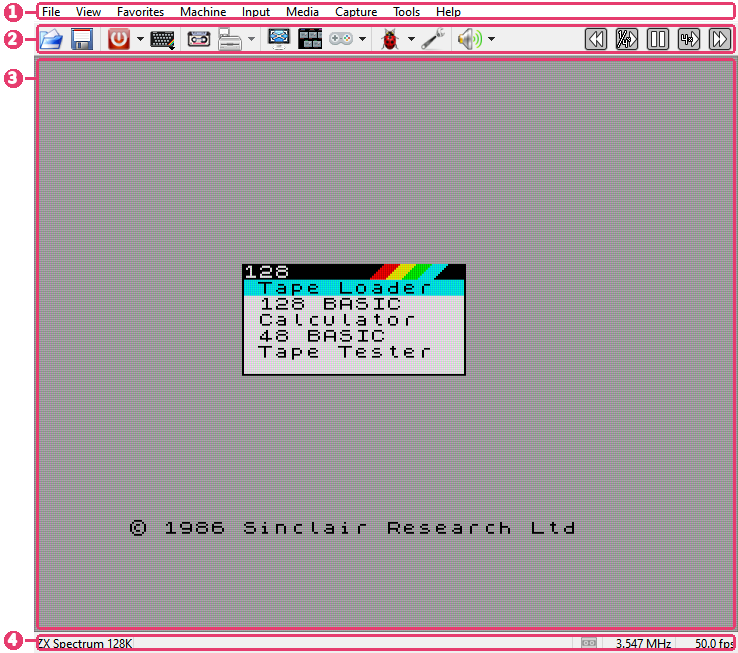
Menu bar - every command, with its key beside it.
Toolbar - the commands you use most, one click away.
Picture - the machine’s screen. Short messages from the program appear in its lower left corner and fade away.
Status bar - the machine, its tape and drives, speed.
The menus are described in Menu bar, the buttons in Toolbar, and the menu a right-click on the picture opens in Right-click menu.
Status bar

the name of the running machine; a click or a right-click on it opens the list of machines;
 tape - the tape light, the block being played (
3/7) and how far the tape is through that block; A: B: C: D: - a light for each floppy drive the machine has;
 joystick and
 mouse - lit while the running
program reads them;
the CPU clock in MHz;
frames per second, or paused.
The tape and the drives light up the same way: dim - nothing is in, gray - a tape or a disk is in, green - reading, red - writing. While it reads or writes, a light blinks: the tape’s between its color and a brighter one all the time it moves, a drive’s each time its head steps to another track.
Hold the mouse over the tape or a drive to see which file is in it. A click opens the Tape Player, or the Disk Manager on that drive’s page; a right-click opens a short menu of the same commands - play, rewind, open, eject.

While a divMMC is on, the  SD light is the light of its
cards - dim with no card in, blue with one, green while one is read, red while one is
written - and either button on it
opens a menu of its cards. The board itself is switched off from the Media menu. The
drives are out of the machine then:
their lights are dim and struck through.

The two ZX Evolution machines and the ZX Spectrum Next have an
SD card slot of their own, and the SD light is the
light of that card, lit the same way. Hold the mouse over it to see the image or folder in
the slot, and whether it is write protected; on the Next, whether it is the Next’s own
card. Either button on it opens the menu of Media > SD Card.
Frames per second
The status bar shows how many frames a second the machine actually runs at. With the status bar hidden, tick FPS in the Indicators group on the Appearance page of Options to see the number in the top right corner of the picture.
The picture
A right-click opens the right-click menu.
Drop a file onto the picture to open it (see Run a program).
A click with the middle button grabs the mouse for a program that uses one; another click lets the mouse go.
Alt with the mouse wheel changes the volume.
Fullscreen
View > Fullscreen hides the menu bar, the toolbar and the status bar. Push the pointer to the top edge of the screen and hold it there: the menu bar comes down, with the toolbar if it is shown. They go away again a moment after the pointer leaves them. On macOS the menu is in the system menu bar, as usual.