File menu
Xpeccy+ opens snapshots, tapes, disks, cartridges and RZX recordings, and saves snapshots, tapes and disks. The File menu opens and saves them and keeps the quick saves. Tapes and disks have pages of their own under the Media menu: Tapes and Floppy disks. Which machine a file runs on is set on the File types page.
File formats
Kind |
Files |
Open |
Save |
|---|---|---|---|
Snapshot |
|
yes |
yes |
|
yes |
48K, 128K, +2, +2A, +3, Pentagon, Scorpion |
|
|
yes |
yes, every machine but the ZX Spectrum Next |
|
|
yes |
no |
|
|
yes |
no |
|
Tape |
|
yes |
yes |
|
yes |
no |
|
|
yes |
yes |
|
Disk |
|
yes |
yes |
|
yes |
no |
|
TR-DOS file |
Hobeta ( |
yes, onto a disk |
no |
Any file |
RAW file to disk |
yes, onto disk A |
no |
Cartridge |
|
yes |
no |
Recording |
|
yes |
from the Capture menu |
Cheats |
|
yes, into the Cheats window |
no |
Archive |
|
yes, an image in it: see Images in archives |
no |
A Hobeta file opens as a TR-DOS file on a disk: in drive A, or in the drive picked from the file types of the open dialog. A drive with no disk gets a new, formatted one first.
RAW file to disk is a choice of file type in the open dialog. It writes any file onto the disk in drive A as a TR-DOS file, in parts if the file is long.
Screenshots, video and sound files are in Capture menu.
Opening a file
File > Open… opens the program’s file dialog. You can also drop a file onto the window, pick one from File > Recent or from Favorites, or name it on the command line. Whether a tape or a disk is run or only mounted is explained in Run a program.
To choose Run or Mount for one file only, hold Shift as you drop it, or as you click Open in the open dialog. A small menu asks: Run or Mount.
File > Recent lists the last 10 files opened, newest first. Click a file to open it, or press its number: 1 to 9, and 0 for the tenth. Hold the mouse over an item to see where the file is. A file that no longer exists is reported and taken off the list. A file of a type Xpeccy+ does not know is reported as Unknown file type and does not go on the list. Clear empties the list. A file whose game has saves has an arrow: hold the mouse over it to see the game’s saves, newest first, and click one to load it (see Quick saves). On macOS that menu also starts with Open, which opens the file.
The Recent Files hotkey opens the list over the picture, so a file can be opened with two keys: the hotkey, then the file’s number. It has no key at first; set one on the Hotkeys page.
File > Reload opens the last file again, the way it was opened: into the same drive, run or mounted. If you loaded a labels file in the Debugger, it is read again too.
When Auto-load labels is ticked on the Debugger page of Options, opening a file
also loads a .labels file of the same name from the same folder, if there is one. A disk
opened into drive B, C or D does not load labels.
Images in archives
A snapshot, tape or disk packed in a .zip, .gz or .7z archive opens as if it were not
packed: open the archive, drop it onto the window, pick it from Recent or name it on the
command line. No archiver is needed.
Only the images the open is for are offered: Disk in the open dialog offers the disks
in the archive, the Tape Player’s Open its tapes. Text files, pictures, cheats and the
SCRSHOT, INFO and POKES folders of an archive are left out.
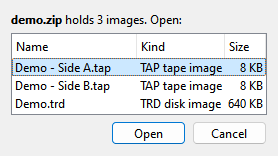
An archive with one image opens it at once. With several, Open from Archive lists them with their kind and size, the first one ready: Side A before Side B, Part 2 before Part 10. The command line takes the first one without asking.
The window title, Recent, Favorites and Reload name the image with its archive,
as game.zip > Side B.tzx, and open that image again. While a disk or a tape from an
archive with several of its kind is in, the drive’s menu and the tape menu list them under
Open…, the one that is in marked: pick another to put it in.
Nothing is written into an archive. A changed disk from one is saved as a file of its own:
the save dialog offers the image’s name in the archive’s folder. A .labels file is looked
for in that folder too, named after the image.
An encrypted archive, a ZIP64 one, one split into parts, or an image that unpacks to more than 256 MB is not opened; a message says why.
The other sides beside an image
A game on two sides, or on several tapes or disks, usually comes as several files in one folder. While a tape or a disk is in, the tape menu and the drive’s menu list the other files of its set under Open…, the one that is in marked: pick another to put it in. More than eight go into a submenu named after the folder. The same list drops down from the file’s name at the top of the Tape Player and of each drive’s page in the Disk Manager.
The drives share a set: an empty drive B, or one whose disk has no set of its own, lists the set of the disk in drive A, so the program’s second disk goes into B with one click. A disk that is in another drive is shown with that drive’s letter and cannot be picked. While the tape plays, its other sides cannot be picked either, as it cannot be ejected.
A side picked from the list is still the same game: the quick saves go on into its folder, and its gamepad bindings and its cheat file stay, as when the next tape of a set goes in by itself (see Tapes). The side goes in while the machine runs, with no pause in the picture or the sound.
Media > Next Side, Shift+F3, puts in the next side without a menu: side B after side A,
disk 3 after disk 2, and the first after the last; Previous Side goes the other way and
has no key at first (see Hotkeys). It works on the tape or the drive that the
program used last, the one the window title names, and keeps to it while you press it again;
before the program has used either, on the tape if it is one of a set, else on drive A. A
playing tape is stopped first. A disk that is in another drive is passed over. The screen
shows what went in, as drive A: side B, or no other side. Of the files of one side, as
Side A and Side A [a], the one with the same notes in brackets goes in. An image from
an archive of several whose names make no set, as BR_MHM1.TRD and BR_MHM2.TRD, steps
through the archive’s list, as its menu shows it; the next tape of a set going in by
itself keeps to the names. The

 buttons of the Tape Player and of each drive in the
Disk Manager do the same for the tape or that drive.
The set is found by the names: files named the same but for the side or the part, as
Game (Side A).tzx and Game (Side B).tzx, Game - Side 1.tzx, game_a.tap and
game_b.tap, Game (Tape 1 of 2).tzx, Game - Disk 2.trd. A number alone does not make a
part: Dizzy 2 and Dizzy 3 are two games. A game with its level tape beside it is a set
too, as some archives name them: Game and Game - Levels, Game - The Game and
Game - Level Data; the game comes first. Notes in square brackets, as [a] or
[SpeedLock 4], may differ from side to side, and a .tap side goes with a .tzx one when
there is no other. An archive beside it counts when it holds one image of that kind, as
Game (Side B).tzx.zip. A tape or disk from an archive holding several lists that archive’s
images instead, as above.
The file dialog
All opening and saving goes through the program’s own file dialog, the same on every system. It starts in the folder you used last.
The list of file types at the bottom is more than a filter: the type you pick says what the file is opened as. Disk puts a disk into drive A, RAW file to disk writes any file onto disk A, and with All files the file’s extension decides. A drive’s own Open… (Media > Floppy Drives) puts the disk into that drive.
Saving
File > Save… saves a snapshot, the tape or a disk. The file types in the dialog say
what is saved: Snapshot, Tape when a tape is in, and Disk A to Disk D for
each drive with a disk. Type the extension of the format you want; with no extension the
file gets .szx, .tap or .trd.
When a tape or a disk is in, there are two snapshot types. Snapshot with tape and disks
puts the images inside the .szx; Snapshot only names them. The dialog remembers the
one you picked last. The first time, the program asks once which you want, unless you have
picked the other type yourself; the Saves page of Options changes
the answer later.
WAV recording, export writes the tape as sound (see Export to WAV). It is a copy, not the tape’s own file, so the tape still counts as changed after the export.
When a file cannot be saved, a message says why, for example a tape with blocks a .tap
cannot hold, or a disk that is not TR-DOS saved as .trd.
File > Save Changed Disks saves every disk that was written to, each to its own file. It asks about each disk first: Yes, No or Cancel. The same question is asked for a changed disk or tape when you close the program, eject it or put another one in; Cancel keeps the disk or tape where it is, and keeps the program open.
Snapshots
A snapshot is the whole machine at one moment. Opening one puts the machine back to that moment, and it runs on from there.
SZX is the format to use. A .szx saved by Xpeccy+ keeps everything: memory, the
processor, the sound chips, the disk controller, the tape position, and the exact point in
the frame. It also records the machine it was taken on, and the file names of the tape and
the disks. Saved as Snapshot with tape and disks, it carries the images too, as they
were at that moment: the tape, the TR-DOS disks and the +3 disks. A tape that was recorded
onto, or one over 4 MB (a long WAV), is only named.
When an SZX is opened, its tape and disks go back in: from where they were, or from the snapshot’s own folder. The tape is wound to the block it was at. A disk that is already in its drive is left as it is, so what was written to it since is not lost. A drive the snapshot had empty, or a tape it did not have, stays as it is. Load media on the Saves page can leave all media as they are. Images that a snapshot carries inside it go back in under their old names.
A carried disk goes back to its file only when you save it. If it had unsaved changes when the snapshot was taken, or its file is no longer there, it counts as changed, so the program asks to save it when you close it, eject the disk or put another one in. When the file is gone, the answer Yes opens the Save dialog with the old name.
An SZX opens on exactly the model it names. If that model is not one of the built-in machines, it opens on the nearest one. When the snapshot was taken with something the machine does not have - other ULA timings, ULA+, an AY, a disk interface, a device that is not emulated - a warning lists what is missing. The machine’s settings are not changed to match.
What an SZX holds and how Xpeccy+ reads it is in SZX snapshots.
Z80 and SNA are older formats that many programs read. They keep less:
.z80can be saved only on a 48K, 128K, +2, +2A, +3, Pentagon or Scorpion. It keeps the first 128K of memory (256K on a Scorpion), but not whether TR-DOS is paged in..snahas no place for the point in the frame. A running machine is saved at the next interrupt, which is where loading puts it back. If that cannot be done, the message SNA: no frame position, use SZX appears. It keeps 48K or 128K of memory.
A .z80 opens on the model it names, as an SZX does. A .sna names only 48K or 128K and
opens on any machine that can run it: a 48K one anywhere, a 128K one on anything but a 48K.
The File types page sets this for each format and says when a
snapshot needs its own ROM.
SPG is a ZX Evolution (TSConf) format. Xpeccy+ can open it but not save it, and only on that machine.
NEX programs and SNX snapshots need the ZX Spectrum Next. It starts them, and .sna
snapshots too, through NextZXOS, from its SD card - and a .z80 when Auto does not
switch it to the model it names: see
Starting programs. The Next’s own state saves as .szx: a
.sna or .z80 has no room for it, and a .nex holds a program, not a running machine. See
Snapshots.
Quick saves
File > Quick Save (F5) saves the machine as it is now into the folder of the game that runs: the image you opened last into drive A, as a tape or as a snapshot, or the tape or the disk in drive A that started since - a disk run from TR-DOS, say. A disk in drive B does not count, nor does another side of the game picked from its list. Each game keeps the last 20 quick saves; a new one past that number deletes the oldest. The game is known by its contents, so the same game opened from an archive, as a plain file or from another folder shares its saves. When no game is open, or the game’s tape or disk has been taken out, the saves go to the folder of the machine instead.
A reset, a hard reset or a switch to another machine ends the game: until a tape or a disk starts again, the saves go to the folder of the machine, and the window title names no image. The reset that starts an image you open is part of the start. Loading a save brings back the game it was taken in, so the quick saves after it go to that game’s folder. How the game is found and what a save carries is in What a quick save keeps.
File > Quick Load (F9) puts back the game’s newest quick save, on the machine it was taken on. File > Quick Saves lists the game’s saves, newest first, with the time each was taken; hold the mouse over one to see its picture, click it to load it. Show Saves Folder opens the game’s folder.
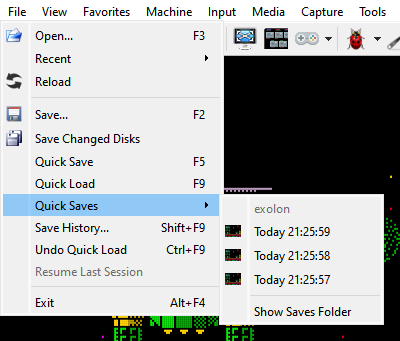
A save takes the tape and the disks with it. Loading it puts them back as they were when it was taken: the tape at its place, and a disk with whatever the game had written to it by then. So a save still loads after the image or its archive was moved or deleted.
File > Undo Quick Load (Ctrl+F9) takes back the last quick load and returns to where you were, the tape and the disks too. Use it again to redo the quick load.
A save of the ZX Spectrum Next does not take its SD card with it, only its name: see Snapshots.
Autosaves
When the program closes, it saves the machine. File > Resume Last Session puts that back: the machine, the game and its media. With the pointer on it, the item shows the save it will load: its picture, the game and the time. To start where you left off every time, choose Resume last session in Machine at start on the Application page.
The autosave on exit goes where a quick save would: into the folder of the game that runs, or of the machine after a reset. Each folder keeps the last few of them, and Resume Last Session loads the newest. The Saves page of Options can also save every few minutes of play, and sets how many saves of each kind a game keeps.
Save History
File > Save History… (Shift+F9) lists every game with saves: the time of its last save, how many quick saves and autosaves it has, and their size in MB. It opens on the game in use, its newest save picked: Enter loads it.
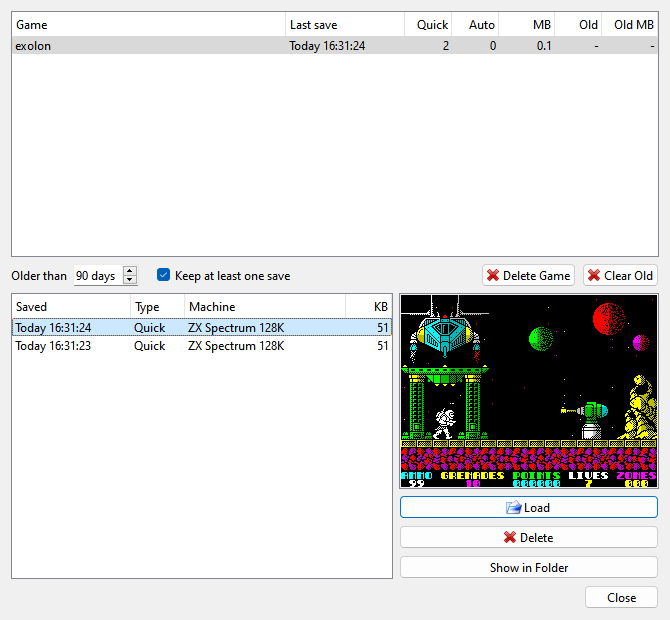
Clear Old deletes the saves older than the number of days next to it, in every game. The Old and Old MB columns show what it would delete. With Keep at least one save on, each game keeps its newest save however old it is.
Click a game to see its saves below - each with its type: Quick, On exit or Auto - and a picture of the selected one. Load loads it (a double click does too), Delete deletes the selected saves, and Show in Folder opens the game’s folder. Delete Game deletes every save of the game picked, and its folder. The Delete key does the same in each list, and a right click offers it. Both ask first. A game whose last save goes disappears from the list.
RZX recordings
An .rzx file is a recording of a whole session, played back exactly. Opening one plays
it in the RZX Player, on exactly the machine it was recorded on. See
Playing an RZX and
Recording an RZX.
Exit
File > Exit closes the program (on macOS it is Quit in the application menu). Before it closes, it asks about every changed disk and tape, and with Confirm exit on the Application page of Options it asks first whether to close at all. Options… is in the Tools menu.