ZX Evo panel
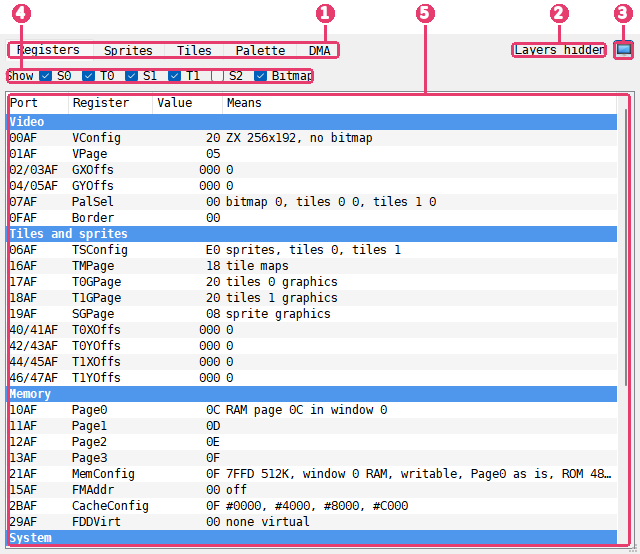
Tabs - the pages of the panel; which there are depends on the machine.
Layers hidden - shown while a TSConf layer is kept out of the picture.
 Show in its own window - moves the panel into the ZX Evolution
window; in this picture the button is pressed in, as the panel is in the window.
Show - the six layer switches of TSConf.
Register list - the registers in groups, each with what it means.
The pictures show the panel in its own window, with Uwol: Quest for Money (The Mojon Twins, TSConf version by Blade and Shiru) on its first level, and layer S2 switched off.
The ZX Evo panel shows what the video and memory hardware of a ZX Evolution is set to. It is there only on the ZX Evolution (TSConf) and ZX Evolution (BaseConf) machines, on a tab beside Breakpoints. Its tab shows the NedoPC logo, and its title bar says ZX Evo.
Machine |
Tabs |
|---|---|
ZX Evolution (TSConf) |
Registers, Sprites, Tiles, Palette, DMA |
ZX Evolution (BaseConf) |
Ports, Palette |
In the lists of registers a value that changed since the last step is in the Changed color, as in the CPU panel.
Right-click a list of registers, or its header, and choose In words or Field names.
In words says in the last column, Means, what a value sets. Field names names
the bit fields instead, the way the TSConf and BaseConf documents name them, for example
VM=ZX RRES=256x192, and the column is called Fields. The choice applies to every list
of the panel and is remembered for the next time.
The Registers tab
The Registers tab lists the TSConf registers, the ones a program sets through the ports that end in AF. They are in five groups: Video, Tiles and sprites, Memory, System and DMA.
Column |
What it shows |
|---|---|
Port |
the port the register is written through, such as |
Register |
the name of the register, such as VConfig |
Value |
the value, in hex |
Means |
what the value sets |
Some registers, such as VConfig, VPage, PalSel and GXOffs, take a new
value only at the start of the next line. While a new value waits, Value shows the
value in use and the value that comes next, as in 00 > 01, and Means describes the
value that comes next.
FMAddr in the Memory group gives where the three parts of the FMAPS window start: CRAM, SFILE and the registers. The dump marks the same bytes: see The FMAPS window on TSConf.
The DMA group is the same as at the top of the DMA tab: see The DMA tab.
Hiding layers
TSConf builds its picture from six layers. The switches in the Show row at the top of the Registers tab hide each layer and show it again:
Switch |
Layer |
|---|---|
S0 |
the sprites under tile layer 0 |
T0 |
tile layer 0 |
S1 |
the sprites between the tile layers |
T1 |
tile layer 1 |
S2 |
the sprites over both tile layers |
Bitmap |
the bitmap screen |
Use them to find which layer draws something on the screen, or to see what a layer covers.
A switch changes only what you see. The program runs exactly as before, with the same timing and the same memory, whether a layer is hidden or not.
While the machine runs, the change shows from the next line on. While the machine is stopped in the Debugger, the main window draws the frame again at once with the layers as they are now set, as far as the machine had drawn it.
To draw the frame again, the machine runs it once more from a snapshot taken at its start. When that cannot be done, a note under the switches says why: Shown from the next frame: followed by the reason, such as the tape or a disk command is running or an RZX is playing or recording. The layers then change when the machine runs again. These snapshots are taken only after the Debugger or the ZX Evolution window has been open on TSConf once, so at the first stop there may be none yet: the reason is then no snapshot of the frame before.
While any layer is hidden, Layers hidden shows at the top of the panel, on every tab. The layers stay hidden after you close the Debugger, until you tick them again.
The Sprites tab
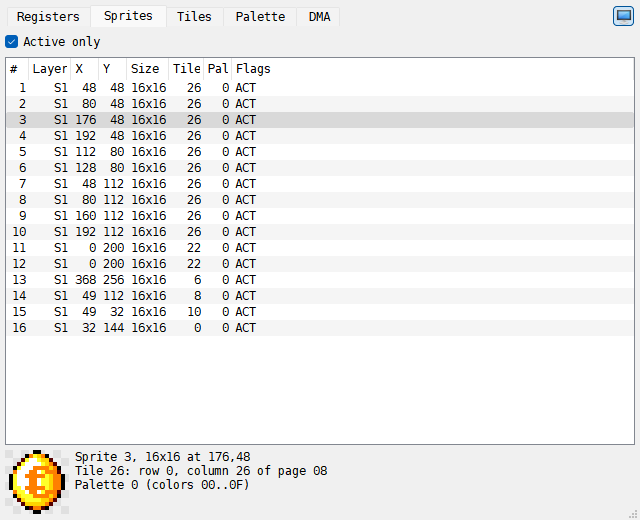
The Sprites tab lists the 85 sprites of TSConf, a row each.
Column |
What it shows |
|---|---|
# |
the number of the sprite, 0 to 84 |
Layer |
the layer it is on: S0, S1 or S2; |
X, Y |
where it is, in dots |
Size |
its width and height in dots, such as |
Tile |
the number of its tile in the sprite graphics |
Pal |
the palette row its colors come from, 0 to 15 |
Flags |
|
A sprite that is not drawn, because it is not active or comes after the third layer, is grayed. Active only, ticked by default, leaves the sprites that are not active out of the list.
Click a sprite to see it under the list, in the colors it has now and as large as the room allows. The dots that are transparent show a checker. Beside the sprite are its size and place, the row and column of its tile in the sprite graphics page, and the colors of its palette row. Drag the line between the list and the sprite to change how much room each gets.
The Tiles tab
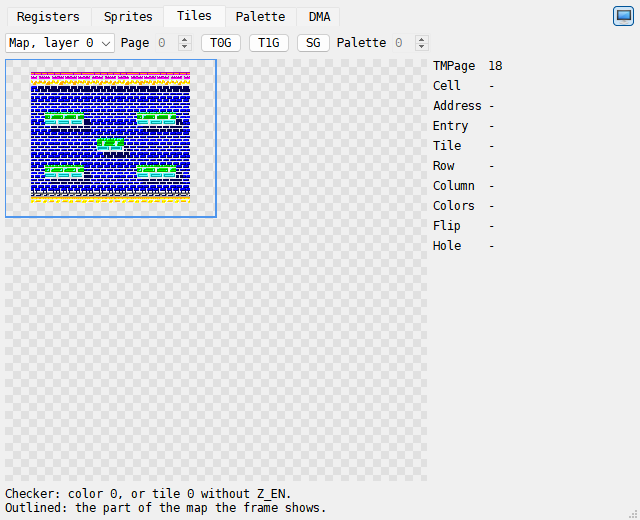
The Tiles tab draws a tile map or a page of tile graphics, 512 x 512 dots: 64 x 64 tiles of 8 x 8 dots. Choose what it draws in the list at the top left:
Map, layer 0 and Map, layer 1 - the tile map of a tile layer, drawn with its tiles and colors. A box in the Header color outlines the part of the map the picture shows. Where that part runs past an edge of the map it goes on at the other edge, so the box can be in two or four pieces.
Graphics - a page of tile graphics with all its 4096 tiles in order. Page is the RAM page it starts at, in hex; its arrows step by 8, the length of a graphics page. Palette is the palette row the tiles are drawn with, 0 to 15. Both are grayed out while a map is shown.
T0G, T1G and SG switch to Graphics and set Page to the page that T0GPage, T1GPage or SGPage points at.
A checker shows where nothing is drawn: a dot of color 0, which is transparent, and on a map a cell with tile 0 on a layer that does not draw tile 0.
Move the mouse over the picture to see the cell or the tile under it in the column on the right. For a map:
Row |
What it shows |
|---|---|
TMPage |
the page the tile maps are in |
Cell |
the cell, across and down, 0 to 63 |
Address |
where the cell’s entry is: page and offset, in hex |
Entry |
the entry, in hex |
Tile |
the tile it holds |
Row, Column |
where that tile is in the graphics page |
Colors |
the 16 colors the cell is drawn with, such as |
Flip |
|
Hole |
yes when the cell is not drawn and the layer under it shows through |
For a graphics page the column shows the Page, the Tile with its Row and Column, the Address of the tile’s first line, and the Line step: the bytes from one line of a tile to the next, in hex.
The Palette tab
On TSConf the Palette tab shows the 256 colors of the palette memory, 16 to a row. The
rows are named by their first color, 00 to F0, and the columns 0 to F. On BaseConf
it shows the 16 palette cells in one row.
The columns B, T0, T1 and S on the right of the TSConf grid mark the rows that the bitmap, tile layer 0, tile layer 1 and the sprites take their colors from now. The color of the border is framed with a dashed line.
Move the mouse over a color to see it in the column beside the grid. Click a color to keep it there while the mouse is elsewhere; it is framed in white and black.
Row |
What it shows |
|---|---|
Index |
the number of the color, in hex |
CRAM |
on TSConf, its address in the palette memory |
Word |
on TSConf, the word that holds it, in hex |
#FF |
on BaseConf, the byte written for this cell through port FF |
R, G, B |
the red, green and blue levels |
VDAC_MODE |
on TSConf, the top bit of the word |
RGB |
the color as it is shown, in hex |
Used by |
the layers whose row it is in, and border for the border color |
On TSConf the levels go from 0 to 31. As the note under the grid says, with VDAC_MODE 0 a level is at full brightness from 24 on.
The DMA tab
The DMA tab shows the DMA of TSConf, which copies memory and fills it without the CPU. At the top are its registers:
Register |
What it shows |
|---|---|
DMASAddr, DMADAddr |
the source and the destination: page and offset, in hex |
DMALen |
the length of a burst, in words |
DMANum |
the number of bursts |
DMACtrl |
the kind of transfer, such as |
DMAStatus |
running or idle |
Source now, Dest now, Done |
while a transfer runs, how far it has got |
The address registers get their new values only when a transfer ends, so while one runs, Source now and Dest now show where it is and Done which burst and word it is at.
Under them, Started this frame and the last lists each transfer the program started in the frame the machine is in and in the frame before:
Column |
What it shows |
|---|---|
Frame |
this or last |
Line:dot |
where the beam was when it started |
Transfer |
the kind of transfer |
From, To |
the source and the destination: page and offset, in hex |
Size |
words per burst x bursts, such as |
Took |
how long it took, in T-states and in lines; running while it is not done; cut short when the program started the next transfer before it ended |
Use it to see when a program moves its graphics during the frame, and how long it takes.
The Ports tab
On BaseConf the Ports tab shows the ports that set the memory and the screen, in four groups:
Ports -
7FFD,EFF7,77andBF, each with what it sets.Windows - the four 16K windows of the CPU’s memory,
#0000to#C000, with the RAM or ROM page in each.Pager - the eight pager registers, two for each window, written through ports
0FF7,4FF7,8FF7andCFF7. One of each pair is used while the ROM signal is off (ROM=0), the other while it is on (ROM=1); a*marks the ones in use now.System - the DOS and NMI state, the CPU clock, the trap address, the border color, the virtual drives and ports
2F,4F,6Fand8F.
The ZX Evolution window
The button at the top right of the panel, Show in its own window, moves
the panel into a window of its own, ZX Evolution. In the window the button is pressed
in; click it again, or close the window, to put the panel back in the Debugger. While the
panel is out, its tab in the Debugger says so, with a Bring it back button. Unlike the
Screen and Sound Chips windows, this one has no command in the Tools menu.
The window works without the Debugger: it follows the machine while the machine runs, once a frame (in fast mode, once in ten frames), and its layer switches work as in the panel. The window keeps its place and size, and a window that was open when you quit opens again at the next start. On a machine that is not a ZX Evolution it shows Nothing to show on this machine.