Floppy disks
The floppy drives are in the Media menu: Floppy Drives has the commands of each drive, Disk Manager shows the files on the disks, Fast Disk Access skips the waits of a real drive. Which machine has which drives is in Which machine has what; the drives themselves are set up in Machine: Floppy Disk.
Putting a disk in
Open a disk image with File > Open…, or drop it onto the window: it goes into drive A (see Run a program). To put it into another drive, use Open… in that drive’s submenu below.
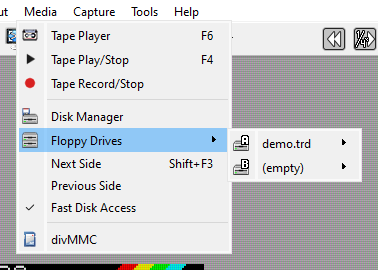
Media > Floppy Drives has a submenu for each drive the machine has. The submenu is named after the disk in the drive, or (empty); the drive letter is on its icon. A star after the name means the disk has been changed and not saved yet. Each submenu has:
Open… - put a disk image into this drive. It is only mounted: nothing starts, and the machine stays the same.
the other disks of the set, under Open… - the disks beside this drive’s one, or for an empty drive the disks beside drive A’s; pick one to put it in (see The other sides beside an image).
New - put an empty disk into this drive. On a Beta Disk machine you are asked Format for TR-DOS?:
 Yes gives an empty TR-DOS disk ready for
files,
 No gives an unformatted one, for a program that formats it
itself.
Save - write the disk back to the file it came from.
Save As… - write the disk to a new file; you pick the name and the format.
Eject - take the disk out.
Write Protect - the machine cannot write to this disk, as with the tab on a real one.
A right-click on a drive’s  light in the status bar opens the same menu.
Disk formats
Format |
Opens |
Saves |
What it is |
|---|---|---|---|
|
yes |
yes |
TR-DOS disk, sector by sector |
|
yes |
yes |
TR-DOS files packed together without the empty space |
|
yes |
yes |
the whole disk track by track, as the drive reads it |
|
yes |
yes |
+3 disk (extended DSK too) |
|
yes |
- |
Teledisk image |
|
yes |
- |
FDI image |
|
yes |
- |
1.44 MB PC floppy |
|
yes |
- |
Hobeta: one TR-DOS file |
A Hobeta file is not a disk but a single TR-DOS file. Opening it into a drive adds the file to the disk that is there; an empty drive gets a new TR-DOS disk with the file on it.
Any other file can be opened as RAW file to disk: it is copied onto the TR-DOS disk in the drive as one file, named after the host file. A file longer than 65280 bytes is split into several parts.
The boot file
Most TR-DOS disks start with a file named boot, which the machine runs when it boots from
the disk. When a TR-DOS disk has no boot of its own, Xpeccy+ adds one as the disk is opened,
so the disk starts by itself and shows a menu of its files. Adding this file does not count
as a change to the disk, and the image file is not touched unless you save the disk.
To stop this, open the Machine page of Options, click the  gear in
the Floppy disk row and clear Add boot loader. The file added is
boot.$B in the
settings folder; put another Hobeta file there
under the same name to use your own.
Fast Disk Access
Real drives spend time moving the head and waiting for the sector to come around. Media > Fast Disk Access skips those waits, so disks load much faster. The same switch is in the Disk Manager and in Machine: Floppy Disk.
On the +3 it speeds up what +3DOS reads and writes. A program that drives the disk with a loader of its own - most copy-protected games do - gets the drive’s real timing even with the switch on, because such loaders count on it.
Changed disks
What the machine writes to a disk stays in memory: the image file changes only when you save the disk.
File > Save Changed Disks asks about each drive whose disk was changed:
Disk A: game.trd has been changed. Do you want to save it? Yes writes the disk to its
file, No goes on without saving it, Cancel stops asking. For a new disk that has no
file yet you are asked for a file name. The same happens for a disk opened from a format
Xpeccy+ reads but does not write, such as .td0, .fdi or .ima. When a save fails, a
message says why, and the disk stays changed.
Before a changed disk is ejected or replaced, and when you close Xpeccy+, you are asked the same question. Cancel keeps the disk in the drive, or keeps the program open.
With Remember mounted media on the File types page of Options, the disks in the drives are opened again at the next start.
Disk Manager
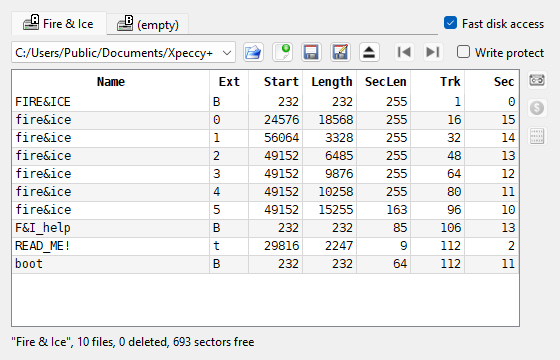
Media > Disk Manager (also  on the toolbar, and a click on a drive
light in the status bar, which opens that drive’s tab) shows what is in
the drives and on the disks. In the picture drive A holds Fire ‘n Ice (n-Discovery, 2003).
Tabs - one for each drive, named after the disk’s own TR-DOS label or the file name. Fast disk access beside them is the same switch as in the Media menu.
The line under the tabs - the file in the drive, whose arrow lists the other disks of its set, then buttons to
 open
a disk image,
 insert a new disk,
 save the changes to the
disk’s own file,
 save the disk to a new file, and
 eject,
 the previous and
 the next disk of the set (gray when
the disk has none), and the Write protect box.
They do what the Floppy Drives menu does.
The catalog - the files on a TR-DOS disk: Name, Ext, Start, Length, SecLen (length in sectors), Trk and Sec (where the file begins). A +3DOS disk has columns of its own (see below); any other disk shows no catalog. A +3 disk that starts its own loader and has no +3DOS directory, as copy-protected games are made, says so in the line at the bottom: +3 boot disk, no +3DOS catalog: it starts from the Loader.
The line at the bottom - the disk’s label, how many files and deleted files it has, free sectors, and modified when it has unsaved changes. While the drive’s motor runs, Head on track shows where the head is, and the file under it is shown in bold.
Select one or more files in the catalog (Ctrl or Shift for several) and use the buttons on the right:
 Copy to tape - add the files to the tape in the Tape Player,
as BASIC programs or code blocks. A file whose length does not match the number of sectors
it occupies (several files joined into one) is skipped.
 Save as Hobeta - write each file to a folder you pick as a Hobeta file
(
name.$C). Save as RAW - write each file’s bare data, with no header (
name.C).
The window is kept up to date as the machine runs: a file the program writes shows up in the catalog straight away.
+3DOS disks
A +3 disk shows its files too, and so do the CPC system and data disks, which the +3 also
reads. The columns are Name, Ext, Type (Program, Numbers, Chars or
Bytes), Start (a program’s autostart line, or the address of code), Length,
Size (the space the file takes on the disk), Trk and Sec. A file in a user area
other than 0 has its number before the name, as 3:GAME. The line at the bottom says which
kind of disk it is, how many files it has and how much space is free.
The buttons work as on TR-DOS. Copy to tape and
Save as Hobeta need the file’s +3DOS header, which gives its type, address and length; a
file without one is skipped. Save as RAW writes the data without the
header, or the whole file when it has none.